How to digitise the bookings in your business in 5 steps
Five steps done in one afternoon, after which clients pick their own time and the reminders go out without you. With examples from several different trades.
1. The services
with the real duration, not the brochure one
2. The hours
when people are allowed to book
3. People and resources
who does what, which room is taken
4. The booking link
on Instagram, on WhatsApp, on your site
5. The automatic emails
confirmation and reminders, without you
You do not move to an online booking diary because you fancy a new app. You move because the phone will not stop ringing, exactly when you are busiest. Or because you have booked two people into the same slot, and now you have to ring one of them to say they can no longer come.
The good news is that it is an easy move: five simple steps, a single afternoon. And you do not have to do all five at once - each step on its own makes the next day easier.
You will see examples from different trades: a psychology practice in the first step, a dental one in the second, a salon in the third. The logic stays the same everywhere. Only the vocabulary changes.
What “digitised” actually means
An online booking diary is not the paper diary moved onto a screen. If you are still the one writing in every appointment, all you have swapped is paper for a screen.
Three things make the difference:
- the client books alone, without ringing you and without waiting for an answer
- the app refuses overlaps, because it knows who is working and what is already taken
- the messages go out without you: the confirmation straight away, then the reminders 24 hours and an hour before
Everything else - the reports, the packages, the reviews - comes later and is optional. Start with the five steps below.
Step 1. Write down your services, with their real duration
The first screen is Services. Each service needs three things: a name, a duration and a price.
Start with the five to ten services you sell in an ordinary week, not with everything you have ever done. You can add the rest in two minutes when you need them; a long list at the start only means a client who scrolls and closes the page.
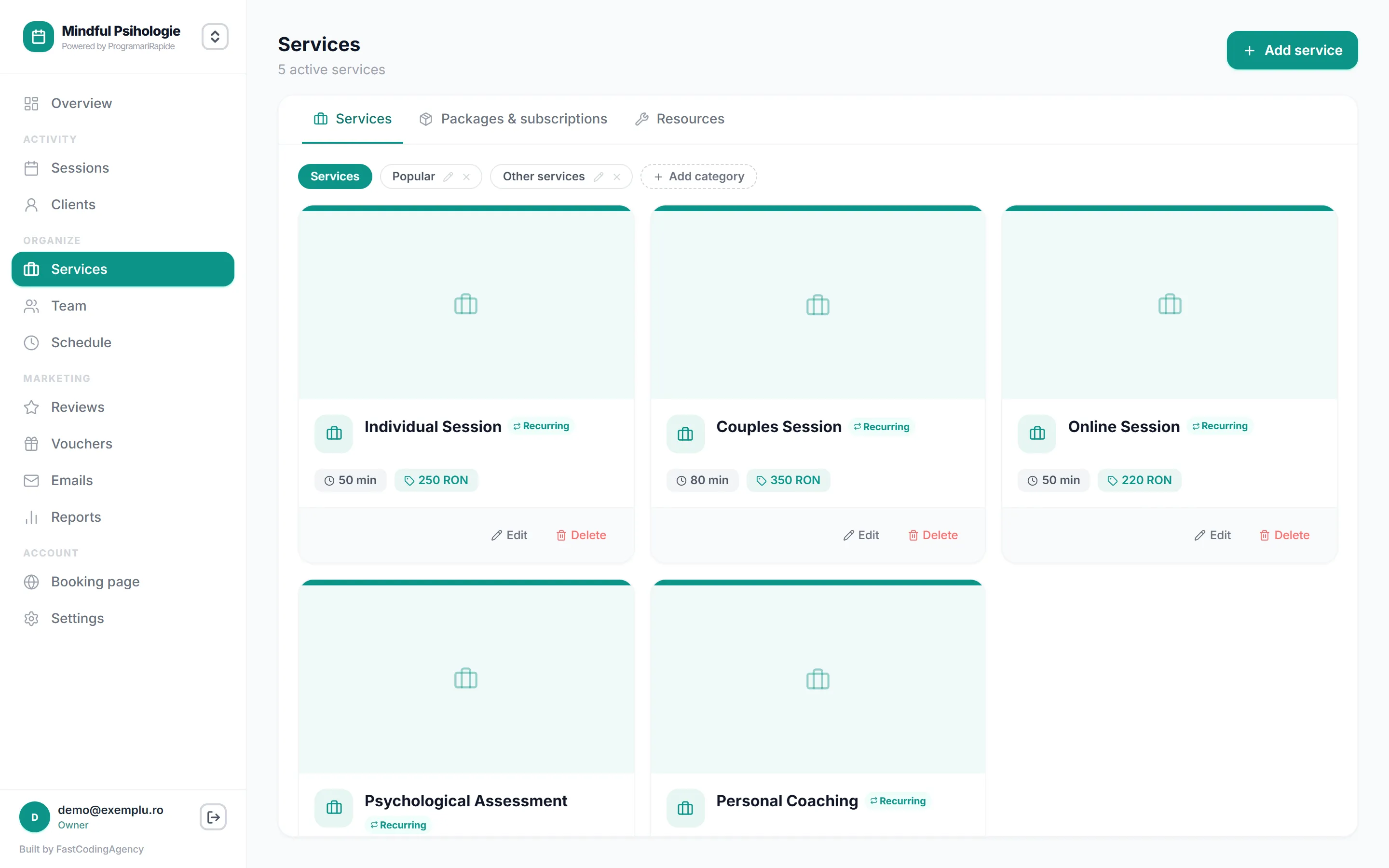
Duration is where people slip most often. Enter the real one, including the preparation and the clearing up afterwards. In a psychology practice an individual session runs 50 minutes and a couples session 80; put both down as an hour and the calendar starts promising times that do not exist.
Step 2. Tell the app when you work
The second screen is Schedule. This is where the Sunday evening phone calls stop.
Enter the intervals you work, day by day. A dental practice open from 9:00 to 18:00, with a break from 13:00 to 14:00, enters exactly that: with the break written into the schedule, nobody can book your lunch and there is nobody left to turn down.
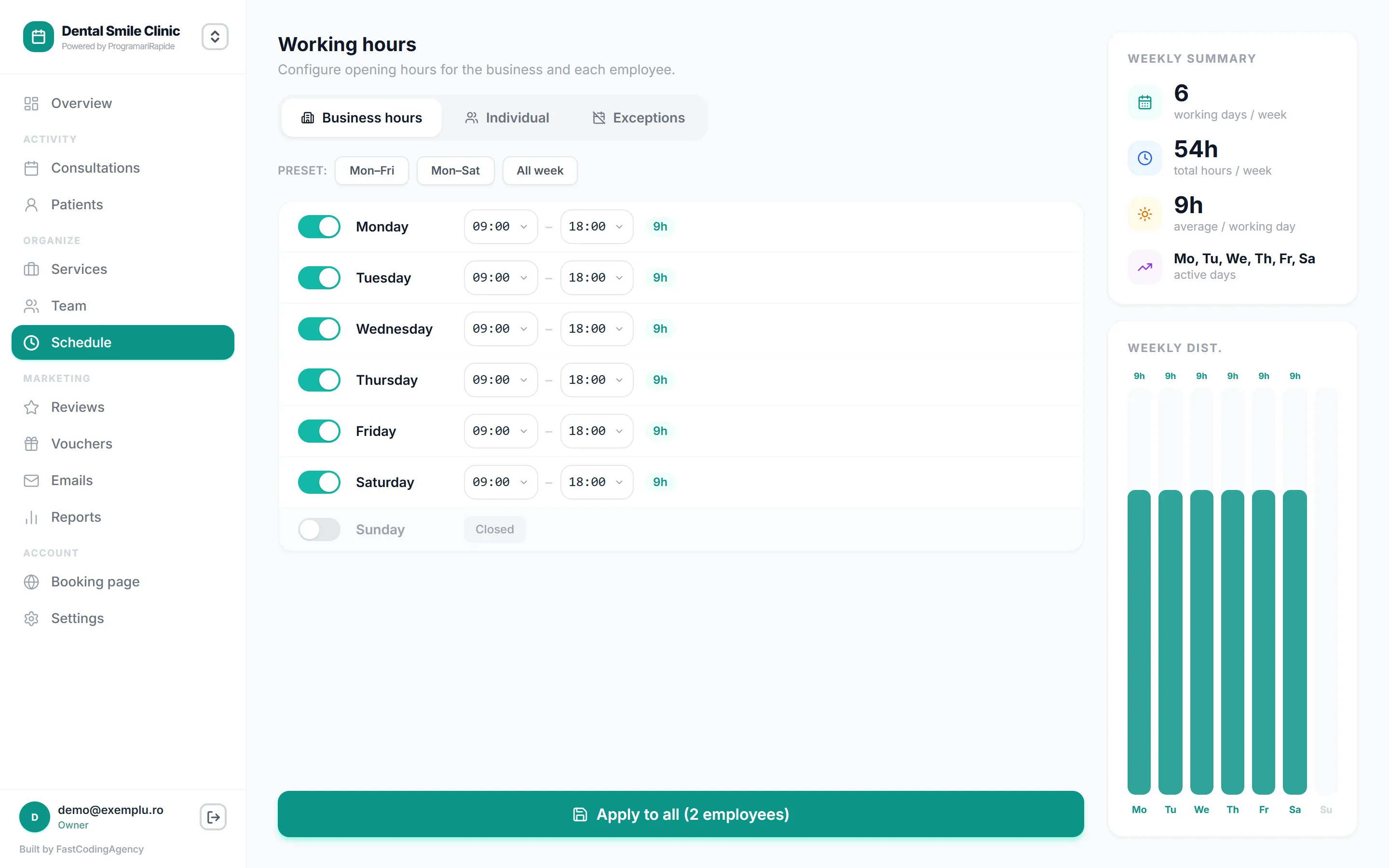
The days off and the exceptions go here too: a holiday, a morning taken by a course, the bank holidays. Every exception you enter now is a cancellation call you will not have to make three weeks from now.
Step 3. Add the people and the resources
If you work alone, skip this step. From the moment there are two of you, the Team screen is what keeps order: each person has their own schedule and their own services, and the client picks who they come to.
In a salon this shows straight away: if one stylist offers a service and another does not, the calendar stops offering it in that person’s slots. If you run a salon, the page for salons goes into more detail.
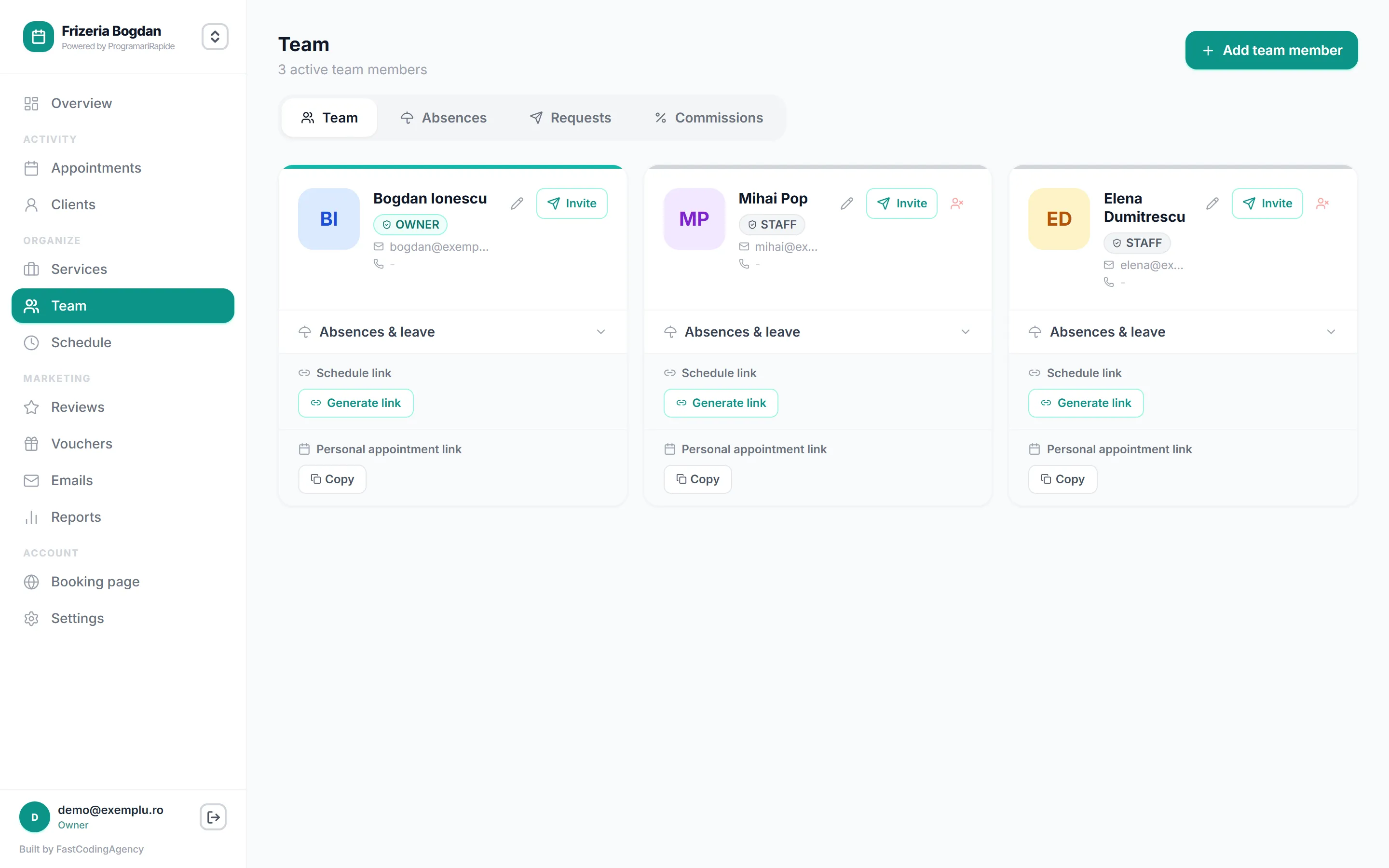
Separate from people are the resources, in the tab next to the services: a massage room, a wash chair, a lift, a machine. An auto shop with three mechanics and two lifts cannot take three cars at once, and the resource entered into the app is the only thing that stops the third booking.
Step 4. Take the link and put it where people look for you
So far you have built something only you can see. The step that changes tomorrow is Booking page: that is where you take your business’s own link from.
The link needs no website. The places that bring the most bookings, in order:
- in the Instagram bio, as the first link
- on the action button of the Facebook page
- in the automatic reply on WhatsApp Business
- on the Google Business Profile, under bookings
- on your site, if you have one, as a button rather than as text
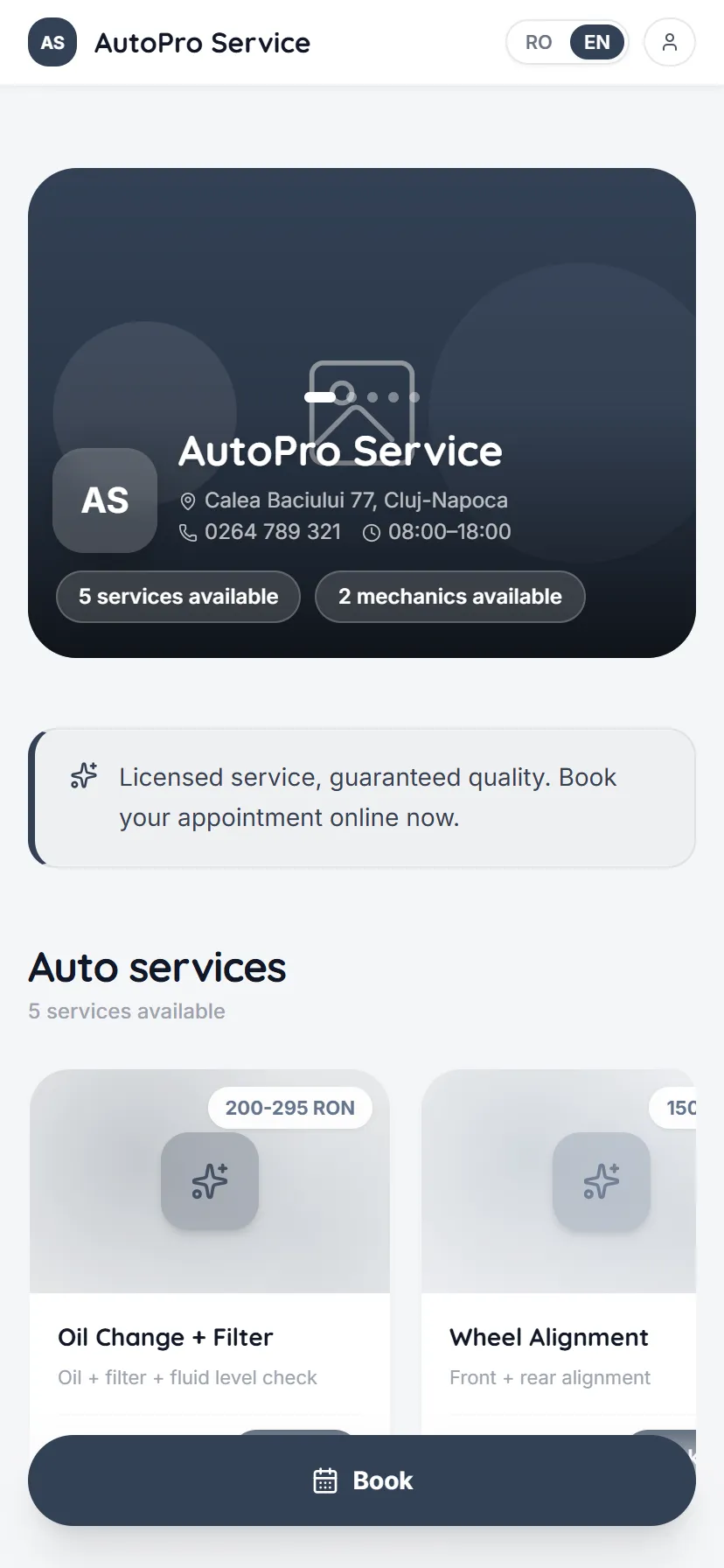
The client opens it in a browser, picks the service, the staff member and the time, leaves a name and a phone number, and that is it. No account, no app to install. The fewer steps between your link and the booking, the more people make it all the way through.
If you only do one of the five steps, do this one. Most bookings arrive in the evening and at the weekend, exactly when you cannot pick up the phone. What else the app can do, beyond this, is on the client booking page.
Step 5. Switch on the automatic emails
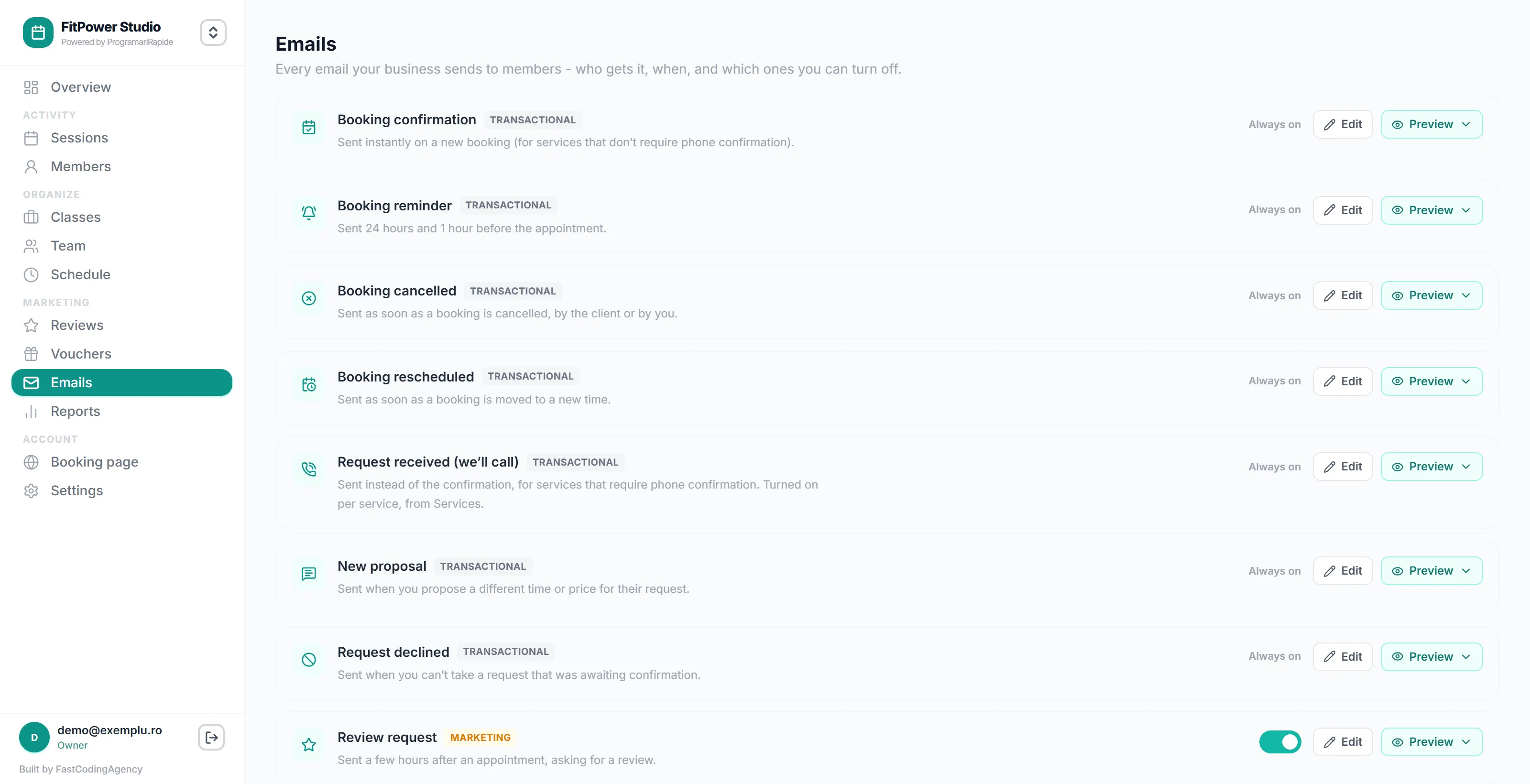
The last screen is Emails. It is also the one that pays for itself.
The emails go out without you pressing anything: the confirmation right after the booking, a reminder 24 hours before, another an hour before, plus the cancellation and reschedule messages. You see them all in one list, you change the wording, and you switch off whatever you do not need.
A fitness studio that sends the 24 hour reminder finds out quickly what it is worth: places freed up in good time get taken again, places freed up in the last hour do not. The reminder does not talk anyone into coming, but it gives the person who can no longer make it a chance to say so while it still helps.
The first week: what changes and what does not
The clients who used to ring will still ring. Some of them will never book online, and that is fine: you enter the booking yourself while you talk to them. It lands in the same calendar, and the client record is created on its own.
Do not throw the paper diary away in the first week. Move only the next seven days into the app. The rest gets added as it comes closer, and after a week the diary stays shut without you making any decision about it.
The client list builds itself. You have nobody to type in by hand. After a few weeks you already have records for everyone who comes back, with what they had done and when they were last in.
How you know it worked
Three numbers, a month later:
- how many bookings arrived outside your working hours - in the evening, early in the morning, on a Sunday. Those are clients you would have lost before, or rung back the next day
- how many no-shows you had compared with the month before (if there are still too many, 7 ways to reduce no-shows)
- how often the phone rang for someone to ask whether you have anything free on Thursday
The other half, the one the client sees, is on the online booking page. And if you are still choosing between several apps, the guide to choosing one compares the four kinds on the market and what each really costs.
Frequently asked questions
How long does it actually take to move bookings online?
The five steps below fit into one afternoon, and the first two already give you a calendar where nothing overlaps. The long part is not the setup, it is the habit: two or three weeks until you check the app in the morning rather than the diary.
What about the clients who will ring anyway?
You enter them yourself, while you are on the phone with them. Nothing is lost: the booking lands in the same calendar, the client gets an email confirmation if you ask for an address, and their record is created on its own. Over time, some of them start using the link.
Can I lose the bookings already written in the paper diary?
Not if you keep the diary. Run both for a week: move only the next seven days into the app, and add the rest as they come closer. After a week the paper diary stays shut without you deciding anything.
Do I have to tell clients I have moved to online booking?
It is not required, but it helps. A short message on Instagram or WhatsApp, with the link and a line like "you can book yourself in now, day or night", brings the first bookings the same evening. The rest arrive on their own, from the link left in the bio.
Read next
- 01 How to choose an appointment app for your business (2026 guide) The seven things to check before you move onto an appointment app, and the four kinds of solution on the market, each with its real price stated plainly.
- 02 How to reduce no-shows: 7 methods that work in any appointment business Most clients who miss their appointment aren't careless: they forgot, or had no way to let you know in advance. Seven methods, from the reminder 24 hours before to each client's individual profile, with examples from different trades.
Try the app, free
Entirely free, with no time limit and no card. Unlimited bookings, staff and services, a public booking page and email notifications, in any trade.